The Menu Bar
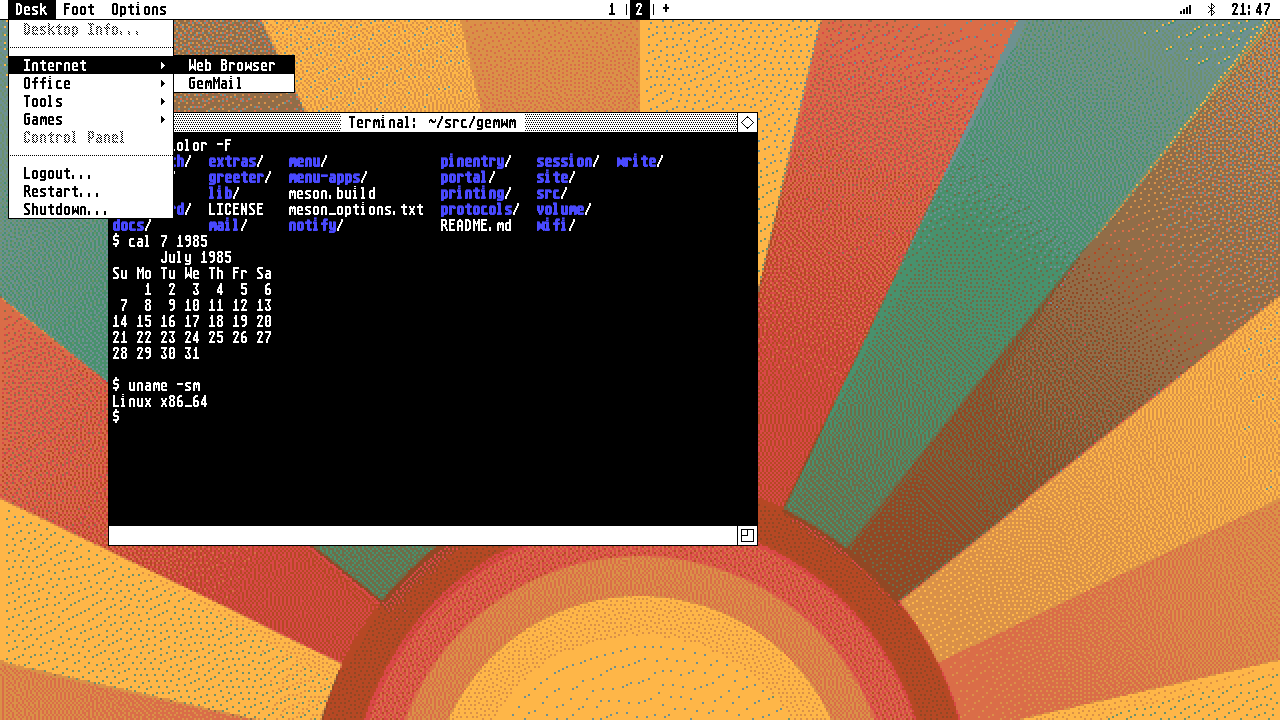
The menus are built in, and ~/.config/gemwm/menu changes them. You only
write what you want to change: a section replaces the built-in menu with the
same name, and every other menu stays as it is.
# Replace the Internet submenu under Desk
[Desk > Internet]
Web Browser = chromium
Mail = foot -e aerc
Chat >
-
Downloads = foot -e yazi ~/Downloads

# A submenu inside a submenu
[Desk > Internet > Chat]
IRC = foot -e weechat

# An empty section hides a menu
[View]
[Title]is a menu in the bar; a new title adds a menu.[Title > Sub]is a submenu, added at the end of Title unless Title has aSub >line saying where it goes.Label = commandruns the command with/bin/sh -c.Labelalone is a disabled (grey) item.-is a separator.
The defaults are the TOS 1.0 desktop menus, plus working items under Desk:
Internet > Web Browser opens GemWeb (or your default
browser if GemWeb isn’t installed), Internet > GemMail, Office >
GemWrite, Tools > Terminal ($TERMINAL, foot if unset), Tools >
Printing, Tools > Notifications and Games > Crossword Puzzle.
The menu bar reads its config at startup; restart it with:
pkill gemwm-menu; setsid gemwm-menu &
Applications’ menus
As in GEM, the menu bar belongs to what’s in front. With a window focused, it
shows Desk, a menu named after the window’s application (from its
.desktop file) with Close Window, Full Size and Move to Workspace, and
Options. GemWM’s own applications add their menus after it: GemWeb’s File,
View and Go, say. Any application can do the same, with a Wayland protocol:
see for app developers.
Menu apps
Everything at the right of the bar is a menu app: a small program with an item
there. They’re listed in the same file, under [Menu Apps], left to right. As
with menus, your section replaces the built-in one (so list the ones you want
to keep), and an empty section removes them all. The defaults:
[Menu Apps]
Printing = exec gemwm-printing --menu-app
Wi-Fi = exec gemwm-wifi --menu-app
Bluetooth = exec gemwm-bluetooth --menu-app
Volume = exec gemwm-volume --menu-app
Battery = exec gemwm-battery
Clock = exec gemwm-clock          # --12h or --24h, --seconds
A menu app is easy to write, and a shell script is enough: see writing menu apps.
The clock and battery take settings from ~/.config/gemwm/config too:
[clock]
mode = 24h                # 12h, or off; click the clock to switch
seconds = no

[battery]
mode = on                 # or off; hidden anyway without a battery