GemFiles
Folders in windows, as GEM's desktop showed them: icons or text, drag to move, and the Trash.
gemfiles
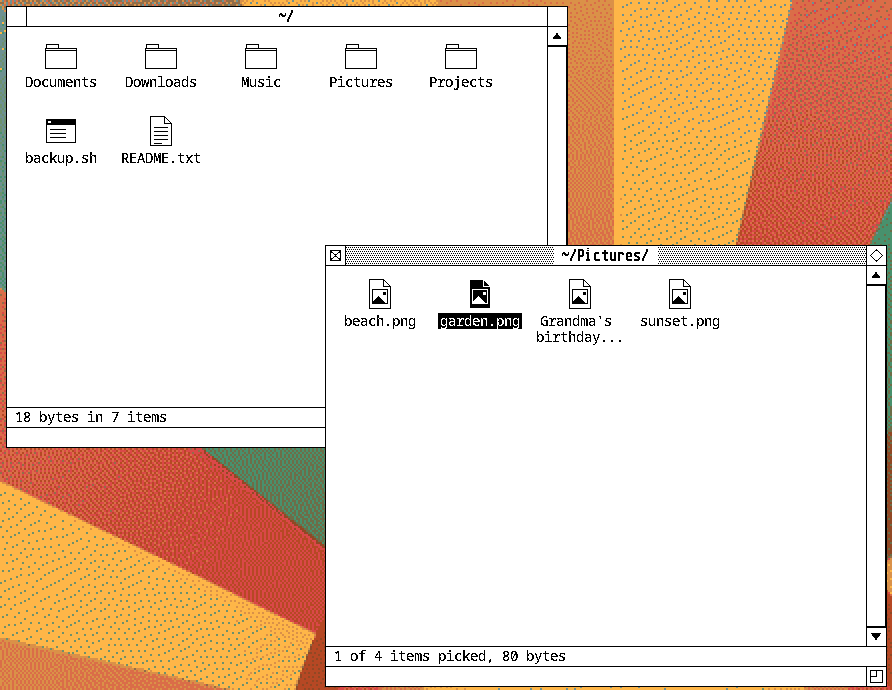
GemFiles (Desk > Tools > Files) shows folders in windows, as GEM’s desktop did. Each window is one folder, its things as icons (a folder, a document, a picture, a program, each with its name under it) or as text, a line each with GEM’s diamond for folders, the size and the date.
Double-click a folder and the window shows it. The close box goes back up a folder at a time, as GEM’s did, and closes the window at the top of where it is: home, a disk, or /.
gemfiles                # a window on your home folder
gemfiles FOLDER...      # each in a window of its own
Picking and moving
Click to pick something, Shift-click for a run, Ctrl-click for one more, or drag a box round things from an empty spot. The arrow keys move, typing a name goes to it, and Return opens.
Drag things to another window, or onto a folder, to move them there. Hold Ctrl to copy instead; to another disk, they’re always copied. Cut, Copy and Paste do the same through the clipboard, which other programs share. If something’s already there you’re asked whether to replace it, and a copy into the same folder is named “name copy”. Copies and moves happen in the background, their progress on the info line.
Its menus
- File: New Window (^N), Open (^O), Show Info… (^I or F2: what it is, and its name, to change), New Folder… (^Shift+N), Move to Trash (Delete), Empty Trash…, Close Window (^W).
- Edit: Cut, Copy, Paste, Select All.
- View: Show as Icons or Show as Text; Sort by Name, Date, Size or Type (folders first); Show Hidden Files (^H). These are one setting for every window.
- Go: Enclosing Folder (^Up or Backspace), your home and its usual folders, the Trash, the disks that are mounted, Computer (/), and Go to Folder… (^L).
Right-click for the same things on what’s under the pointer.
The Trash
Move to Trash uses the freedesktop Trash that other programs share. Go > Trash shows what’s in it; there, File has Put Back, to where it came from, and Delete…, for good.
Setting up
Files open in their usual application. In a GemWM session, folders other
programs open (a browser’s “show in folder”, say) open in GemFiles: GemWM
installs gemwm-mimeapps.list, defaults that apply only when
XDG_CURRENT_DESKTOP is GemWM, so other desktops keep theirs. Your own choice
comes first; to use another file manager in GemWM:
xdg-mime default yazi.desktop inode/directory