GemPlay
A music player: the album's cover in the ST's colours, a playlist, no gaps between tracks, and the media keys.
gemplay
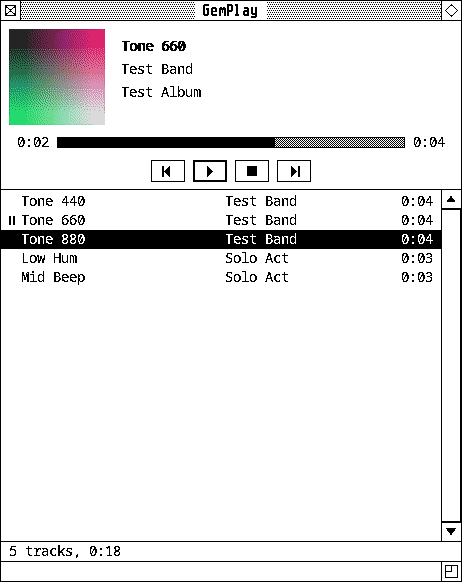
GemPlay (Desk > Office) plays music. A deck at the top shows the album’s cover in the ST’s colours (from the file, or a cover.jpg or folder.jpg beside it), the track’s title, artist and album, a bar for where it’s got to, and GEM buttons for Previous, Play/Pause, Stop and Next. The playlist is under it.
gemplay                   # the playlist as you left it
gemplay FILE|FOLDER...    # added to the playlist, and played
Its menus
- File: Add Files… (^O), Add Folder… (everything in it, sorted), Clear Playlist, Quit (^Q). Music dropped on the window, from GemFiles say, goes on too.
- Edit: Remove (Delete), Select All.
- Controls: Play/Pause (Space), Stop, Next (^Right), Previous (^Left; a few seconds into a track, it starts it again), Shuffle, and Repeat Off, All or One.
Click or drag along the bar to go to that point; Left and Right go back and on five seconds. Double-click a track, or press Return, to play it.
How it plays
FFmpeg reads and decodes nearly anything (MP3, FLAC, Ogg, Opus, AAC/M4A,
WAV…) and the music plays through PipeWire, so it’s in your volume controls
like anything else. One track runs into the next with no gap, as an album
should. The playlist, the track you were on, Shuffle and Repeat are kept in
~/.local/state/gemwm/play.
Media keys
GemPlay is an MPRIS player, so the media keys work: they run gemwm-media,
which tells whichever player is playing (playerctl does it if it’s
installed). playerctl -p gemplay works too.